Lens Tracking (OpenTrackIO)
This page details the options for setting up tracking through the OpenTrackIO protocol.
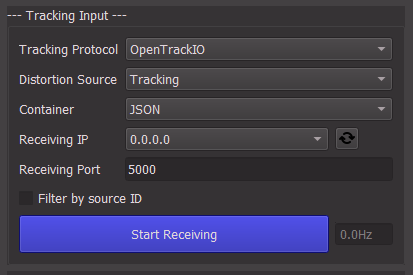
1. Tracking Protocol
Possible values:
2. Distortion Source
OpenTrackIO carries calibrated lens data alongside the positional tracking. Focal length, sensor size, centershift and the distortion coefficients are taken from the OTIO stream, there is no additional data to provide.
3. Tracking Receiver
Warning
This assumes a tracking system has been configured on the camera to calibrate, and it currently sends OpenTrackIO data to the computer running CalibFX Lineup on a specific port.

3.1. Container
OpenTrackIO container format.
- JSON
- CBOR (WIP)
Currently only JSON container is implemented.
3.2. IP
IP address of this computer. In most cases leave 0.0.0.0 (0.0.0.0 means "any IPv4 address at all"). If you want to make sure to only listen to the data on a specific network adapter, you can choose its IP instead from the list.
The IP list can be refreshed by clicking the refresh button, indicated by two arrows following each other.
3.3. Port
Port on which to receive OpenTrackIO messages. This is the port that should be given along with the true IP address of the computer running CalibFX Lineup (not 0.0.0.0) to the tracking apparatus.
3.4. Camera ID
There is a Camera ID in OpenTrackIO to identify multiple cameras sent on the same port. By default this is not filtered by CalibFX Lineup.
To activate Camera ID filtering, check the "Filter ID" box. You can then put the desired ID in the field on the left.
3.5. Start/Stop
Once IP, Port and filters have been configured, use this button to toggle the OpenTrackIO receiver. The fact that the button is green only indicates that the receiver is running, not that it is actually receiving messages. To check this, you can look at the tracking values on the right, which should move if you move the camera.
In addition to that, there is a Frequency indicator under the button. It gives an estimate of the frequency at which messafges are received. If no messages are received the frequency will be zero.
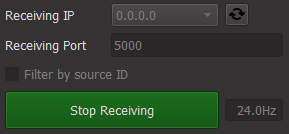
While receiving, the tracking UI will become greyed out. To unlock it, press "Stop Receiving".